A robots.txt file is a text file at a website’s root that tells crawlers which URLs they may request. A single stray line can stop Google reading a whole site, often noticed only after traffic drops.
This guide shows how to confirm a page is blocked by robots.txt, find which of 3 layers caused it, and fix it safely. If the cause of a drop is still unknown, start with a traffic drop triage.
Quick answer: To catch a page blocked by robots.txt, open the robots.txt report in Search Console to see the file Google fetched, then run a live URL Inspection on a page that lost traffic. Fix the rule, the file’s delivery or the CDN setting behind it, then request a recrawl.
Reading the Search Console Label Before Touching the File
Search Console uses different messages for robots.txt trouble, and each points at a different fault. A rule match, an indexed blocked URL, a failed fetch and an edge block need separate fixes. Read the label before you edit the file.
| Label you see | What it means | Where to look first |
|---|---|---|
| Blocked by robots.txt | Google read the file and a rule matched the URL | The rules (layer 1) |
| Indexed, though blocked by robots.txt | Google indexed the URL but could not read the page | Whether the URL should rank |
| Crawl allowed: No, or Page fetch: Failed | Google’s tool was stopped by a rule | The user-agent groups (layer 1) |
| Not fetched, or Blocked due to access forbidden (403) | Google could not get the file or the page | Delivery or the edge (layers 2 and 3) |
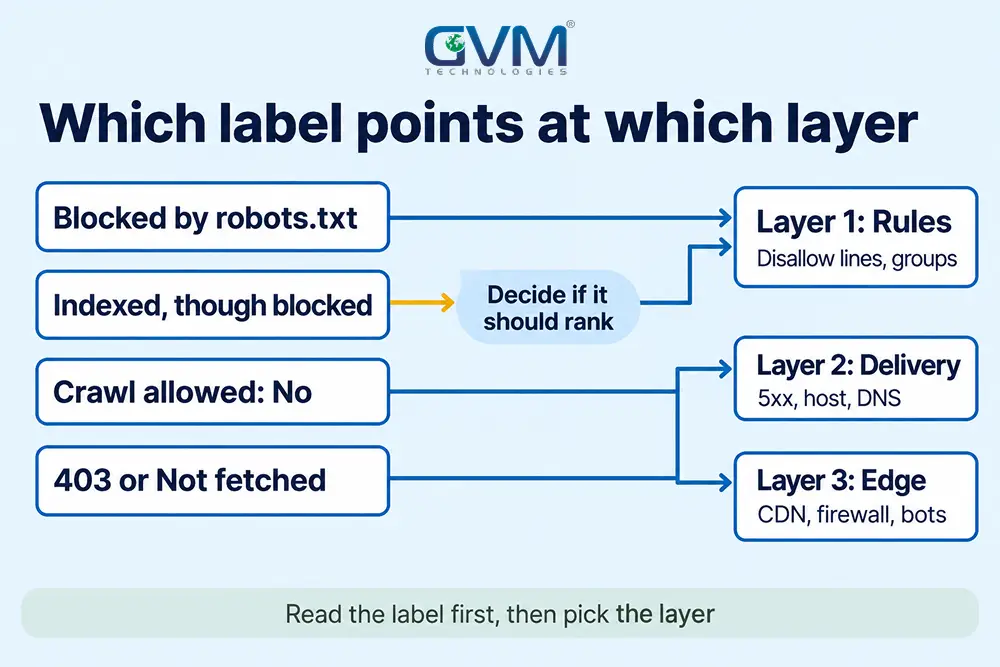
Some statuses are no robots.txt fault, as the guide to each indexing status shows.
On a catalog that blocks cart, search and tracking paths, a tagged product URL can show “Indexed, though blocked” while the clean page ranks.
The 3-Minute Proof: What Google Fetched Versus What You See
Check the copy Google fetched, not the one your CMS shows. Open the robots.txt report, read the last fetched file and its version history, then run a live URL Inspection on 1 page that lost traffic. Together, the 2 results show whether a rule or the delivery path is at fault.
1. Open the robots.txt report and read the versions
Google’s robots.txt report shows what Google saw, not what you meant to publish:
- Last fetched copy: the file as Google read it, with errors and warnings highlighted.
- Versions: fetches from the last 30 days, listed only when the file or result changed.
- Property type: a Domain property, or a URL-prefix property with no path.
- Retired tool: Google replaced the old Tester in 2023, so skip guides that still use it.
A blanket Disallow that appeared for a day and vanished shows up in the version list.
2. Run a live URL Inspection on 1 lost page
Inspect a page that lost traffic, then read “Crawl allowed” and “Page fetch” under Page indexing. Google’s unblock guide treats “Blocked by robots.txt” there as confirmation.
In practice: the live test crawls as Google-InspectionTool, not Googlebot. So a page can pass in Google’s last crawl and fail the live test when only the test crawler is blocked.
3. Compare 3 raw fetches, with a control
Fetch /robots.txt with a browser user agent, a Googlebot string and an invented bot name. A CDN may verify real Googlebot by IP address, so a spoofed string proves little.
- 3 of 3 return 200: the edge is probably not filtering by crawler name.
- Invented bot 200, Googlebot string 403: a rule names crawlers.
- Both 403: generic bot protection, or your own IP is being challenged.
- Final proof: match server logs to the IP ranges on Google’s crawler list.
A technical SEO audit runs these checks in 1 pass. GVM Technologies delivers them through its search engine optimization service.
Layer 1: The Rules Inside the File
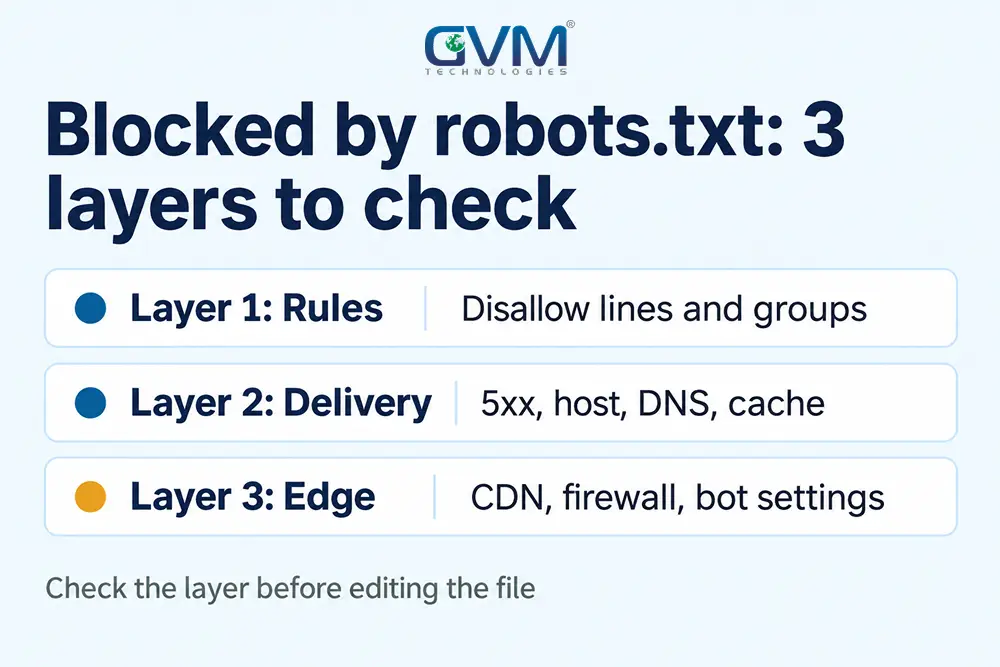
Most rule-level blocks come from 3 patterns: a leftover blanket Disallow, a wildcard group that catches Google’s other crawlers, and a path pattern that matches more than intended. The file is short, so the cause is usually visible within a minute.
1. A leftover blanket Disallow from staging or a launch
Google reads Disallow: / as a block on the whole site for that group. It usually arrives when a staging file is copied live, a host ships a default, or a plugin writes a virtual file.
Since WordPress 5.3, the “Discourage search engines” checkbox adds a noindex tag instead of a Disallow line. A blanket Disallow therefore points to a file, plugin or host (see the hosting migration guide).
2. A wildcard group that catches Google’s other crawlers
The usual trigger is panic. An aggressive scraper hits the server, and the owner blocks everything except Googlebot with a User-agent: * group.
Google’s robots.txt specification applies 1 group per crawler, the one whose token matches most specifically, and does not merge groups. Crawlers without their own group fall under *:
- Google-InspectionTool: live tests fail while normal crawling works.
- Googlebot-Image: images can drop out of Google Images.
- Storebot-Google: product surfaces lose their page fetch.
- AdsBot-Google: ignores the
*group, so it needs its own rule.
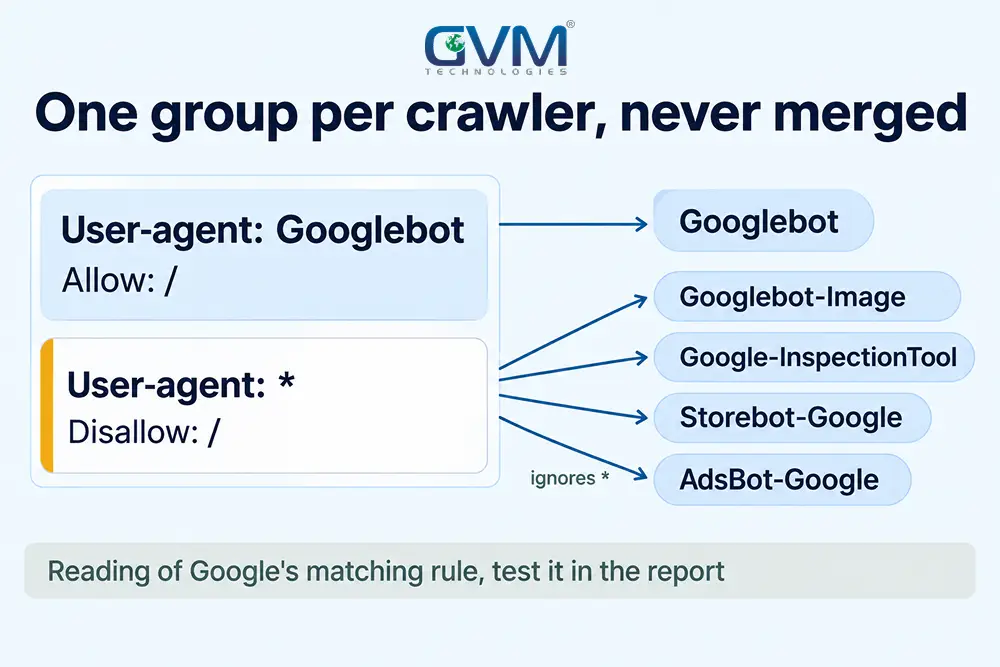
Google does not say Googlebot-Image inherits Googlebot’s group, so name each crawler you rely on.
3. Patterns that match more than intended
Short rules can reach further than they look:
Disallow:with no path: blocks nothing, because Google ignores rules without a path.Disallow: /blog: also matches /blog-tips, since paths match by prefix.Disallow: /*?ver=: matches versioned CSS and JavaScript files that WordPress adds by default.Disallow: /_next/static: hides scripts Google needs to render the page, as/images/hides images.
The longest matching rule wins, and a tie goes to the less restrictive one. Paths are case-sensitive.
Layer 2: How the File Reaches Google
A correct file can still fail on the way to Google. Google reads a separate file per host, protocol and port and caches it for up to 24 hours. It treats a 4xx error as no restrictions, but a server error pauses crawling.
Server errors pause crawling
Google’s specification sets a clock for a robots.txt file that returns 5xx errors. DNS faults and timeouts count the same way:
- First 12 hours: Google stops crawling the site and keeps retrying the file.
- Next 30 days: Google uses the last good copy, or assumes no restrictions if none exists.
- After 30 days: an available site is treated as having no file, and an unavailable one stays paused.
An outage is therefore a crawling event, as the downtime troubleshooting guide explains.
GVM’s DevOps and cloud hosting service includes real-time monitoring, which can flag a failing file before Google reacts.
The wrong host, a stale record or a cached copy
Google reads robots.txt per origin, so 1 file does not cover the others:
- www and bare domain: each needs the same file or a redirect.
- https and http: a file on 1 protocol does not cover the other.
- Subdomains: a staging subdomain has its own file, or none.
- Redirects: Google follows at least 5 hops, then treats the file as missing.
- Size and place: content beyond 500 KiB is ignored, and a file in /blog/ is not read.
- Stale DNS: an old A record from a previous host can send some of Google’s requests to the wrong server, so a file that loads for you fails for Google.
- Cache: Google keeps the file up to 24 hours, so a fix may take a day to show.
The Crawl Stats report shows host status and robots.txt fetches.
Layer 3: The Edge, Where the File Can Look Perfect
A CDN, firewall or bot-protection setting can stop Googlebot before it reads the file, so robots.txt looks clean while Search Console reports errors. A 403 message points here, not at the file. On Cloudflare, check the AI-training settings first, since their effect changed in September 2026.
1. Cloudflare’s September 15, 2026 change
Cloudflare’s announcement says Block and Block on pages with ads now apply to mixed-use crawlers, including Googlebot. It also adds Disallow AI Training, which keeps search open.
| Training setting | What Cloudflare says | Effect on Google Search |
|---|---|---|
| Disallow AI Training | Publishes a no-training preference, search stays open | Googlebot keeps crawling |
| Block | Blocks training crawlers, mixed-use ones too | Googlebot is stopped |
| Block on pages with ads | Same block, on pages with ads | Googlebot is stopped there |
GVM’s DevOps and cloud hosting team covers the infrastructure layer where such settings sit.
2. A managed robots.txt that differs from your file
When a policy is set to Block or Disallow, Cloudflare’s managed robots.txt prepends its own rules to your origin file. Its example blocks GPTBot, ClaudeBot and Google-Extended.
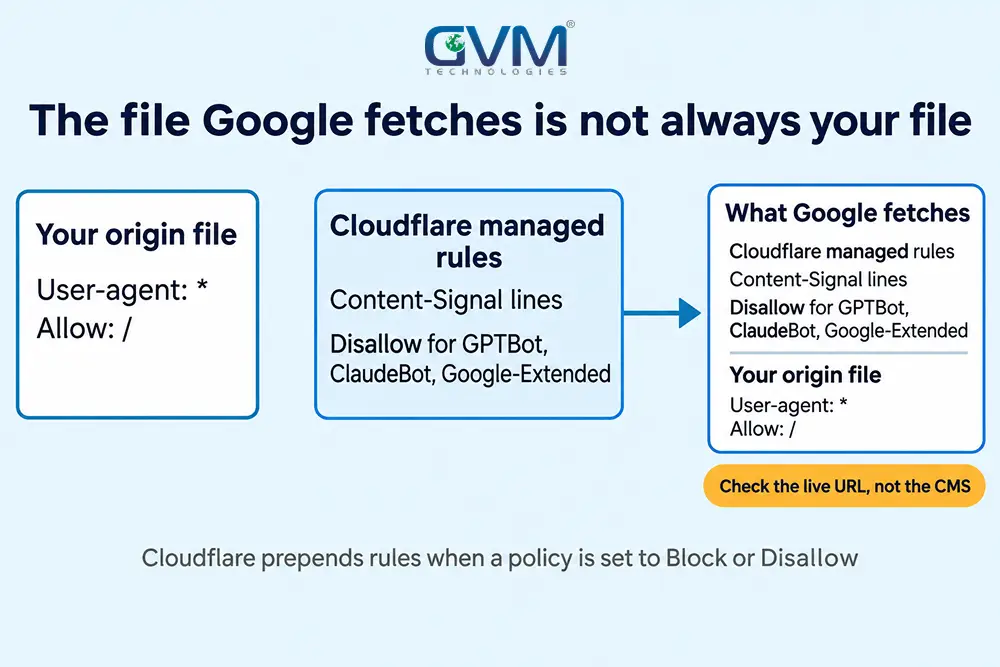
Search Console may flag the Content-Signal lines as “Syntax not understood”, with no SEO impact per Cloudflare. So Google can fetch a different file from the one in your CMS.
3. Bot Fight Mode and firewall rules
Reports of Googlebot being challenged are mostly secondhand. Search Engine Journal covered an owner whose sitemap fetch returned 403 after blocking AI training.
Stub Group described 1 client de-indexed with “Blocked due to access forbidden (403)”. Still, treat both as single-site reports, and review rules as in the pre-launch security checklist:
- Security events: find the rule that fired on Googlebot requests.
- Identity: match requests to Google’s published IP ranges, not the user-agent string.
- Exemption: let verified crawlers skip challenge rules.
- Re-test: run the live test, then request a recrawl.
When a Block Is Deliberate and When It Still Bites
Some blocked URLs are no mistake. Cart pages, internal search and tracking URLs are often blocked on purpose, and Google can still list a blocked URL that other pages link to. Decide per URL whether it should rank, then pick the matching tool.
1. Why a blocked page can still be indexed
Google’s robots.txt guide says a disallowed URL can be indexed when other sites link to it, shown without a description. That is the “Indexed, though blocked by robots.txt” message.
An Indexed count that jumps after an edit has 2 readings: newly allowed pages joined, or blocked URLs were indexed without content. Open the status rows to tell which.
2. Pick the right tool for each URL
| Goal | Use | Why |
|---|---|---|
| Keep a page out of results | noindex tag or header, crawling allowed | Google must fetch the page to see it |
| Save crawl effort on junk URLs | robots.txt | It does not remove indexed URLs |
| Page deleted for good | 404 or 410, left crawlable | A block hides the status, see 404 handling |
| Private data | Password or login | robots.txt is public and voluntary |
| Pick among duplicates | Canonical, crawling allowed | A blocked page cannot show its canonical tag |
Warning: Do not combine Disallow with noindex. Google cannot see the tag on a blocked page, and its noindex documentation says noindex inside robots.txt is unsupported.
3. Two myths: security and AI scrapers
Owners who see probes for phpMyAdmin or .env files in their logs sometimes add Disallow lines. Scanners ignore robots.txt, and the file is public, so it only lists those paths for anyone.
Patching, a firewall and rate limits work, as the hacked site guide shows.
Blocking AI scrapers is also not blocking Google. Google says its Google-Extended token does not affect Search inclusion or ranking.
OpenAI’s crawler documentation separates OAI-SearchBot for search from GPTBot for training.
Fixing a Page Blocked by Robots.txt and What Recovery Looks Like
Fix in this order: correct the cause in the right layer, confirm the live file, test 1 URL, request a recrawl, then watch Page indexing. Google says a recrawl request gives no guarantee of an immediate recrawl of unblocked URLs.
1. The 5-step fix order
- Change the cause: edit the rule, the delivery fault or the edge setting, 1 layer at a time.
- Check the live file: open /robots.txt on the exact host.
- Test: run the live URL Inspection on 1 affected page.
- Request a recrawl: use the robots.txt report menu, then request indexing for priority pages.
- Watch: check Page indexing and Crawl Stats over the following weeks.
2. What recovery looks like
Google publishes no recovery timer. Crawling resumes once the file refreshes, and pages return as Google recrawls them.
One agency reported live tests passing within an hour and re-indexing taking about a week, an anecdote, not a benchmark.
However, allowing Google restores access only. A site blocked for weeks may also have thin pages that the block hid, such as image pages with little text.
If pages sit at crawled, currently not indexed afterwards, the problem has moved layers.
3. A change routine that catches the next accident
- Version control: keep robots.txt in the repository and review each diff.
- Deploy check: fail a production build that contains
Disallow: /. - Alerts: monitor robots.txt for 5xx errors and unexpected changes.
- Recheck points: test after migrations, CDN changes and plugin updates.
GVM’s DevOps service runs CI/CD pipelines, where that deploy check belongs.
FAQs
1. How long does Google take to see a robots.txt fix?
Google caches the file for up to 24 hours, and a recrawl request can speed that up.
2. Can robots.txt remove a page from Google?
No, because a blocked URL can stay indexed if other pages link to it. Use noindex with crawling allowed, or delete the page.
3. Will blocking AI crawlers hurt my Google rankings?
Not Google-Extended or GPTBot, per Google’s documentation. A wildcard group or a Cloudflare Block setting can stop Googlebot itself.
4. Why does Search Console say blocked by robots.txt when my file looks fine?
Common causes are a cached copy, a different host or protocol, a virtual or managed file, or a group that catches Google-InspectionTool.
5. Is a robots.txt file required?
No. A missing file returns a 4xx error, which Google treats as no restrictions.
Conclusion: Find the Layer Before You Touch the File
The costliest robots.txt mistake is editing the file before knowing which layer failed. A bad rule, a failed fetch and a firewall can each show up as the same lost traffic.
Only 2 checks tell them apart: the robots.txt report and a live URL test on 1 page that lost traffic. If the label says 403, skip the file and open your CDN’s security events instead.
Once the fix is live, put the file under review. A person should read the next edit before Google does.
Talk to GVM Technologies about a robots.txt block
A block that goes unnoticed for weeks costs traffic, and fixing the wrong layer costs more time.
GVM’s team starts with technical SEO audits that check crawlability, then separates a block from an indexing problem. Its QA testing validates a build, security included, before launch.
For a site with unknown settings, project rescue covers the investigation. Website development adds testing before launch and ongoing maintenance.
GVM’s trucking insurance case study reached page 1 for 3 target phrases in roughly 3 to 4 months.