Images slowing down website pages usually trace back to 2 faults. Files carry more pixels than the screen shows, or image requests start too late. Sometimes neither is true, and a slow server is the real delay.
This guide reads 2 real speed reports, then gives you 4 numbers that separate images slowing down website speed from other causes. It builds on our guide to a website loading slowly on mobile, so start there if only phones struggle.
Quick answer: Images slowing down website speed show up in 3 ways: a file far bigger than its slot, a main image the browser finds late, or too many images painting in the first screen. Subtract your time to first byte from your Largest Contentful Paint first. If that gap is small, the images are not the problem.
Images slowing down website speed: 2 reports, 2 opposite verdicts
A speed score alone cannot tell you whether the cause is images slowing down website speed or something else. Of the 2 reports below, 1 scored 59 and images were the wrong suspect. The other scored 92 and images were the only red flag.
Report A: a score of 59 where the server hides behind the images
A Next.js page, measured with Vercel Speed Insights on desktop, scored 59 on the Real Experience Score. The page itself was light, with 1 small portrait and some text. Its timings:
- First Contentful Paint (FCP): 3.74 s
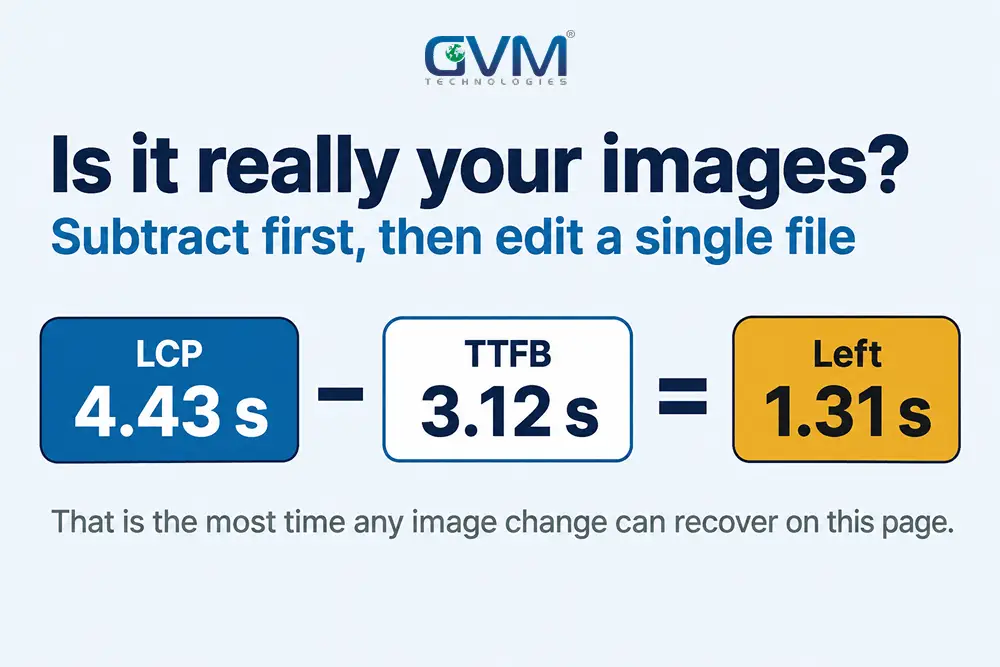
- Largest Contentful Paint (LCP): 4.43 s
- Time to First Byte (TTFB): 3.12 s
TTFB takes 70% of LCP (3.12 of 4.43 s), and first paint to LCP spans only 0.69 s. LCP cannot come in under TTFB, so even a free image leaves this page above the 2.5 s goal that Google sets for Core Web Vitals.
In practice: Each figure is a 75th-percentile value across 14 visits, so treat the subtraction as a direction, not a lab result.
The direction is still clear. Images were the wrong theory here, and the fix lives in the server response: hosting, caching, a CDN and slow database queries. GVM Technologies handles that delay through server management and monitoring.
Report B: a score of 92 where Speed Index points at the images
A desktop Lighthouse run (version 12.2.1, September 2024) covered an image-heavy magazine homepage. It showed:
- Performance score: 92
- FCP and LCP: 0.5 s and 0.9 s
- Cumulative Layout Shift (CLS) and Total Blocking Time: 0.002 and 0 ms
- Speed Index: 3.0 s, the only red metric
LCP says the biggest element appears fast, while Speed Index says the visible area keeps filling for 3 s. On a grid of thumbnails and a slider, that points at many images painting in the first screen. This is an inference, since the report names no files.
Speed Index carries 10% of the Lighthouse score, so this page needed a lighter first screen, not a rebuild. Here, images slowing down website speed was a crowding problem, not a weight problem.
The 4-number read: find the guilty image before you edit a file
Open PageSpeed Insights and read the real-user section of your Core Web Vitals first, because web.dev advises trusting field data over 1 lab run. Then pull 4 numbers, each naming a different fix before you touch a single image file:
- LCP minus TTFB: how much time images can change
- File width against slot width: whether files are oversized
- First-screen image count: whether the screen is crowded
- LCP image start time: whether the hero arrives late
1. The image window: LCP minus TTFB
Subtract TTFB from LCP. On a healthy page, web.dev puts TTFB near 40% of LCP, so a far higher share blames the server, as Report A showed.
Moving to a faster host without losing rankings is a separate project from fixing images slowing down website pages.
2. File width against slot width
Images slowing down website pages often start as a width mismatch. Open the Network tab, filter by Img and compare each file’s pixel width with the width it displays at. About 2 times the slot width is a common ceiling for sharp phone screens.
3. Images in the first screen
The first screen is where images slowing down website speed hide most often. Count every image that paints before the first scroll, including slider slides and CSS backgrounds. A grid of 10 thumbnails can lift Speed Index even when LCP is fine.
A phone fits only a few images at once, which is why mobile-first design starts small.
4. When the LCP image request starts
In the waterfall, the LCP image should start loading about when the page’s first resources do. A late start means late discovery: a CSS background, a slider script, or loading="lazy" on the hero.
Chrome’s guide says to skip lazy-loading on the LCP image. It also advises fetchpriority="high" on 1 or 2 images at most.
Warning: About 16% to 17% of pages lazy-load their LCP image, according to the 2025 Web Almanac. A blanket lazy-load setting can cause this form of images slowing down website speed.
Fix the PageSpeed warnings behind images slowing down website speed
PageSpeed Insights groups the causes of images slowing down website speed under a few warnings, and each points at a different fix. Newer reports fold several into “Improve image delivery,” while older audit names still appear in many tools. Match your wording to a row, then read the last column.
| Warning wording | What is really wrong | Fix | Ignore it when |
|---|---|---|---|
| Improve image delivery (older: Properly size images, Serve images in next-gen formats) | File too wide for its slot, or heavy for its pixels | Resize to about 2 times the slot, then convert to WebP or AVIF | Savings are under 4 KiB, which Chrome does not flag |
| Defer offscreen images | Images below the first screen load at the start | Add loading="lazy" |
The image sits in the first screen |
| LCP request discovery (older: LCP image was lazily loaded) | Browser finds the hero late or ranks it low | Use a plain img tag, add fetchpriority="high", remove lazy |
The LCP element is text |
| Image elements do not have explicit width and height | Layout jumps when the image arrives | Set width and height attributes | CLS is under 0.1 and images are not what shifts |
| Avoid enormous network payloads | Total page bytes are high | Apply the budget below | Rarely safe on mobile |
A clean report can still hide a heavy CSS background image, so confirm in the Network tab. A technical SEO audit should add image optimization to its speed checks.
Where images get heavy before they reach the page
Most images slowing down website speed are made upstream, before the page ever loads them, in the way files are exported, resized and uploaded. Fix that pipeline once and every future upload arrives light. The 4 usual sources of that weight are:
- Camera files uploaded as is
- Thumbnails a CMS recompresses
- Sliders that load every slide
- Backgrounds a page builder adds
1. Camera files and stock downloads
Compare a phone photo with its slot:
- Phone photo: 4000 by 3000 pixels, or 12 million, needing roughly 48 MB of memory once decoded at 4 bytes per pixel
- Blog slot: about 800 by 600 pixels, or 0.48 million
- Gap: 25 times the pixels
Resize first and compress second, because compression cannot remove pixels the layout does not show.
2. CMS thumbnails and double compression
A common mistake is compressing the original upload while the page serves a different generated size. WordPress and similar systems build several sizes per upload and may recompress each one.
Fix it in 3 moves:
- Check which file the page actually requests.
- Compress at the last step with a plugin or image CDN that handles every generated size.
- Regenerate thumbnails after a theme change.
Fixing images slowing down website pages differs on each CMS, so how to choose a CMS matters early.
3. Sliders, galleries, backgrounds and GIFs
Each of these adds images without adding meaning:
- Sliders: 6 full-size slides load 6 images unless the extra slides are deferred. Chrome suggests
fetchpriority="low"for hidden slides. - Galleries: show 150 to 300px thumbnails that open the full file on click. Hundreds of images on 1 page is a design problem that compression cannot fix, and user experience in web design says the same.
- Sprites and inlined images: HTTP/2 made many small requests cheaper, and base64 inlining grows each file by about 33%. Neither replaces right-sized files.
An image optimization budget to hold every page to
To optimize images for page speed, hold each page to a budget: a weight and a width per image role, plus a total. The Web Almanac page weight data puts the median mobile home page at 911 KB of images and the 90th percentile at 6,288 KB. About 1 MB is typical.
| Image role | Export width | Target weight | Load rule |
|---|---|---|---|
| Hero (LCP) image | 1200 to 1600px | 80 to 200 KB | Plain img tag, fetchpriority="high", no lazy |
| Content photo | 800px | 40 to 120 KB | loading="lazy" |
| Product or card thumbnail | 300 to 400px | 10 to 40 KB | Lazy below the first screen |
| Logo and icons | SVG | 1 to 10 KB | Load normally |
| Decorative background | Avoid, or 1200px | Under 100 KB | Lazy if below the fold |
- Targets: the row values are GVM rules of thumb, not Google limits.
- Photographers and real estate: these sites can spend 200 to 400 KB on a hero if the rest stays light.
The link between website speed and conversion rate is why a budget pays for itself.
Fix images slowing down website speed in this order
Resize first, convert second, schedule third. Resizing usually removes the largest share of bytes, a modern format trims another quarter or more, and priority settings decide when the hero appears. Stop when the numbers pass, because the last 5% costs more time than it saves.
1. Resize to the slot and let srcset choose
Export at about 2 times the slot width. Then offer smaller files with srcset and sizes, so a phone downloads the small one.
Warning: If you leave out
sizes, the browser assumes the image spans the full viewport width and may pick a larger file than needed.
MDN’s responsive images guide covers the syntax.
2. Convert and compress by job
Pick the format by job:
- WebP: Google reports that lossy WebP files are 25% to 34% smaller than comparable JPEGs at equal quality.
- AVIF: it generally compresses further and works in the latest version of all major browsers, per Chrome. Serve it in a picture element with a WebP or JPEG fallback.
- SVG: use it for logos and icons.
Image optimization tools such as Squoosh and ImageOptim let you compare quality side by side.
3. Set priority and defer the rest, by platform
Give 1 or 2 images fetchpriority="high". Give images below the first screen loading="lazy", and give every image width and height. Then check what your platform does by default:
- WordPress: since version 6.3, core adds
fetchpriority="high"to the image it judges most likely to be LCP and skips lazy-loading on the first images. Builders and plugins can override this, so view the page source. - Shopify: the theme docs say to set fetchpriority high on the LCP image.
- Next.js:
next/imageresizes and serves modern formats, so mark the hero as the priority image. - Wix, Squarespace and Webflow: builders limit what you can edit in page code, so your levers are slot-sized uploads and fewer images. Compare Webflow vs WordPress before a rebuild.
- Custom builds: the template can handle all of this from day 1, and GVM’s website development team builds high-performance sites that way.
When image optimization changes nothing, or makes things worse
Owners often blame images slowing down website speed when the real delay sits elsewhere. Sometimes one fix only moves time into another phase. These 4 cases cause most wasted effort, and each takes minutes to check before you compress another file.
- Compressing before checking TTFB. Report A shows why: no file change gets LCP under the server wait.
- Shrinking the file but not the wait. web.dev shows a smaller image that only moved time into render delay, because JavaScript kept the element hidden.
- Trusting 1 lab run. Lab tools differ from real visitors. Run 4 or 5 tests and read field data first.
- Chasing a 100 score. Once LCP passes 2.5 s on real visits and images sit inside the budget, move to the next bottleneck.
GVM’s QA team runs performance and load testing that can catch a page-weight jump before a redesign goes live.
FAQs
1. Do images in my media library slow my website?
No. Images slowing down website speed are the ones a page loads, not the ones in storage.
2. What size should website images be?
To optimize images for page speed, export at about 2 times the display width and stay inside the budget table. Add short alt text too, which supports alt text and accessibility basics.
3. Should I lazy-load every image?
No. Lazy loading delays an image until the visitor scrolls near it. Keep it for images below the first screen, and keep the hero eager with fetchpriority="high".
4. Is AVIF better than WebP for page speed?
AVIF is generally smaller, and WebP is the safer fallback. Fix priority and sizing first, since a correctly prioritized WebP hero beats a lazy-loaded AVIF one.
5. Do images slowing down website speed hurt Google rankings?
Google recommends good Core Web Vitals and says they align with what its core ranking systems seek to reward, though relevance still leads. Treat an LCP over 2.5 s on real visits as a fix-soon item.
Conclusion: find the guilty image, then fix it once
A team can compress 400 files, watch the score stay at 59 and still miss a slow server. The 4-number read takes a few minutes and tells you whether to resize, trim, reprioritize or call your host.
Work in that order: measure, resize, convert, prioritize 1 image and defer the rest, then hold the page to its budget. Set the budget before the next redesign adds a hero video or slider, because the next upload is where images slowing down website speed come back.
Talk to GVM Technologies about images slowing down website performance
If your report still shows images slowing down website performance after the fixes, the cost is weeks of guesswork and plugins that cannot touch the real delay. If a cheap fix is enough, the review says so. A GVM review of your report can cover:
- Server response: DevOps and cloud hosting covers server management, monitoring and performance tuning behind a high TTFB.
- Page build: website development puts responsive image handling into the template.
- Load behavior: quality assurance testing includes performance and load testing.
- Search impact: search engine optimization includes technical SEO for site speed.
GVM built the Tourneau luxury watch e-commerce platform, a storefront where product photos carry the sale.