A GA4 tracking problem is any gap between what happened on your site and what Google Analytics 4 reports. Purchases go missing, sources read “direct”, or yesterday’s visits do not show up.
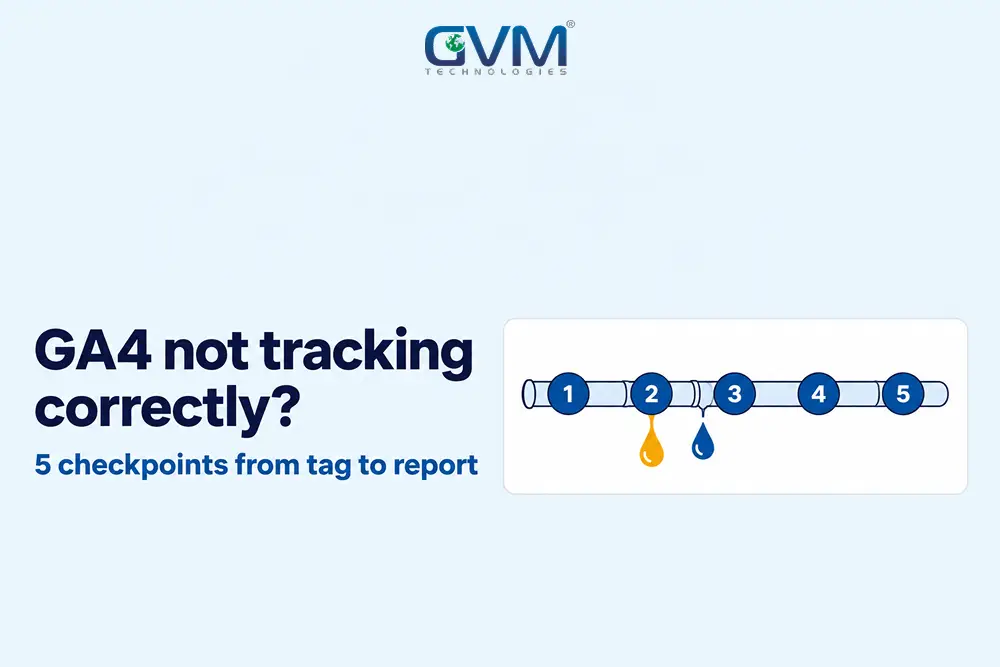
GA4 not tracking correctly traces to 1 of 5 checkpoints, from the tag to the report. Test each checkpoint in order, and see our guide to analytics in digital marketing for why the data matters.
Quick answer: GA4 not tracking correctly usually breaks at 1 of 5 checkpoints: the tag does not fire, events fail to arrive, filters or delays change the count, sources get the wrong credit, or a report hides the data. Test the checkpoints in that order, then compare GA4 with your own order records.
Key takeaways
- Test in order: GA4 not tracking correctly has 5 checkpoints, fire, arrive, count, credit and show, each with its own symptom.
- Preview is not live: a Google Tag Manager (GTM) tag can pass Preview and still fail live if the container was not published.
- Pattern beats size: an even gap points to consent or blockers, while clusters point to a gateway, browser or deploy.
- Hidden is not lost: thresholds can hide rows GA4 did record, and a reporting identity switch is a reversible test.
GA4 not tracking correctly: the 5-checkpoint data path
Data crosses 5 checkpoints: your tag fires, events arrive at Google, GA4 counts the events, GA4 credits a source, and a report shows the result. Each checkpoint fails with a different symptom, so test in order instead of changing settings at random.
The Data Path Audit: fire, arrive, count, credit, show
Google Analytics not working looks different at each checkpoint, so match the symptom to the likely cause.
| Checkpoint | Symptom you see | First test |
|---|---|---|
| 1. Fire | Realtime and DebugView, GA4’s live views, stay empty | Tag Assistant, Google’s tag checker, on the live page |
| 2. Arrive | Some orders or users missing | Network requests and consent state |
| 3. Count | Totals off, or test visits missing | Data filters and processing time |
| 4. Credit | Direct spikes, paid clicks filed as organic | Final landing URL and referral list |
| 5. Show | Page visible in Explorations, GA4’s custom reports, not in standard reports | Date range and identity setting |
Many website owners struggle because the symptom shows at checkpoint 5, a report, while the cause sits at checkpoint 1 or 2.

If the whole line collapsed overnight, read our sudden drop in website traffic guide first.
The ledger test: compare GA4 with your own records
Divide the GA4 purchase count by the orders in your own system for the same 7 days. The result is your capture rate. No tool matches a backend exactly, so read the pattern, not only the gap.
- Even gap: consent refusals and blockers, so checkpoint 2.
- Clusters by gateway, browser or device: a redirect or script fault.
- Starts on 1 date: a deploy, plugin update or GTM publish.
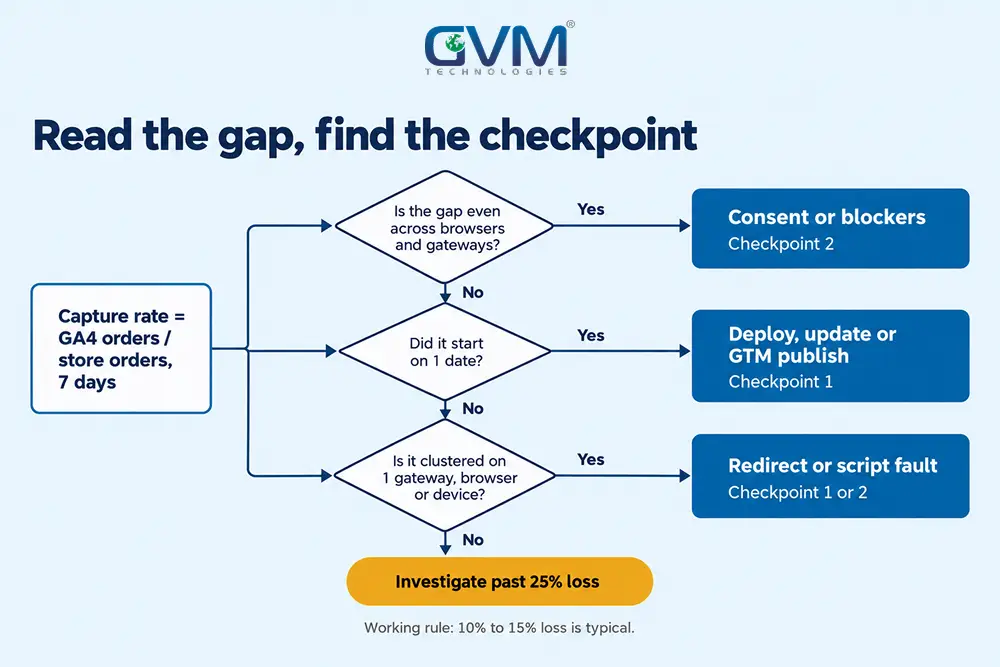
Google publishes no acceptable gap. Our working rule: expect 10% to 15% loss from consent and blockers, and look harder past 25%.
Checkpoint 1, fire: confirm the tag runs on the live site
A tag fires only when the page carries the tag, the Measurement ID (the G- code of your data stream) is right and the container is published. Test the live site, not Preview. Open Realtime in an incognito window, then compare DebugView with the Network tab to see which layer stays silent.
1. GA4 not tracking after a theme or plugin change
- Tag inside theme files: a theme update can overwrite the tag. Move the tag into GTM or a header plugin.
- Unpublished container: Preview shows tags firing, but live visitors get nothing until you Submit and Publish.
- Wrong Measurement ID: the G- ID may belong to an old or duplicate property, so data lands elsewhere.
- Duplicate tags: a plugin and GTM both send page_view, which inflates counts.
- Missing template coverage: the tag loads on blog pages but not on checkout or thank-you pages.
A crawl finds templates without the tag, and our technical SEO audit guide shows how.
2. Test with Tag Assistant, DebugView and the Network tab
- Open the live page in incognito and load Tag Assistant to confirm the Google tag and ID.
- Filter the Network tab by “collect” and watch for requests to a Google Analytics domain.
- Open DebugView under Admin. Tag Assistant and GTM Preview switch debug mode on, while gtag.js, Google’s tag code, needs debug_mode set to true.
Warning: Google’s developer traffic filter excludes debug-mode activity, so your tests vanish from standard reports once the filter is active. DebugView stays empty for visitors who declined cookies.
3. WooCommerce and GTM4WP: GA4 not tracking purchases after an update
GTM4WP is a WordPress plugin that passes WooCommerce data to GTM through the dataLayer, GTM’s data list. After an update, its event name can change, so the purchase trigger stops matching.
The plugin also flags an order as tracked after the first push, which can suppress the real visit.
- Trigger mismatch: compare the trigger with the live dataLayer event. The plugin’s author advises against gtm4wp.orderCompletedEEC as a GA4 trigger.
- Flagged too early: if code runs before the thank-you page displays, as the author saw with 1 gateway, the real visit sends nothing.
GVM Technologies handles purchase tracking in WooCommerce development work, which includes payment gateway integration and decides whether the thank-you page loads with order data.
Checkpoint 2, arrive: GA4 not tracking events that fire in the browser
An event can fire in your browser and still not reach Google. Consent settings, ad blockers, script policies and payment redirects each break the trip. Partial loss, where some orders vanish while others arrive, usually points to checkpoint 2, not the tag.
1. Consent Mode: Basic versus Advanced
Consent Mode controls what tags may send before a visitor agrees.
| Particular | Basic | Advanced |
|---|---|---|
| Tags before consent | Blocked | Load, then send limited cookieless pings if declined |
| Visitors who decline | Not reported | Can be modeled |
Modeling needs 1,000 events a day with analytics consent denied for 7 days, plus 1,000 daily users with consent granted on 7 of the last 28 days, per Google’s behavioral modeling rules.
Below those numbers, declined visits disappear. Our GDPR cookie consent guide covers banner setup.
Since 15 June 2026, Google’s consent change makes Consent Mode the single control for Ads cookies, so retest after banner edits.
2. Ad blockers, privacy browsers and script policies
- Blockers and privacy browsers: they can stop requests to Google’s domains. Test with the blocker off, then segment by browser.
- Content Security Policy: a strict policy can refuse Google’s script, and the browser console logs the refusal.
3. Payment redirects: GA4 not tracking buyers who skip the thank-you page
A purchase tag on the thank-you page counts only buyers who land there. Redirect gateways and bank pages lose buyers who close the tab after paying, so the order exists in your store but not in GA4.
Send the purchase from your server with the Measurement Protocol, Google’s way to send events straight to GA4.
The protocol is an add-on to page tagging, not a substitute. Our payment gateway guide covers the gateway side.
If checkout sits on another domain, set up cross-domain measurement, which links sessions across your domains, or the session splits.
GVM’s QA team runs manual and automated tests, which is how a redirect fault gets caught before release.
Checkpoints 3 and 4, count and credit: GA4 not tracking totals or sources correctly
Once events arrive, GA4 can still change the numbers. Filters drop traffic, processing delays reshape yesterday’s data, and attribution rules decide which source or campaign gets credit for a visit. Check the settings below, in order, before you blame the tag.
1. Filters, delays and limits that change the totals
- Internal traffic filter: an Active filter excludes your own IP, so office tests vanish. Excluded data does not come back.
- Hostname filter: Google’s 21 September 2026 filter blocks events from domains off the allowlist, so list your checkout domain.
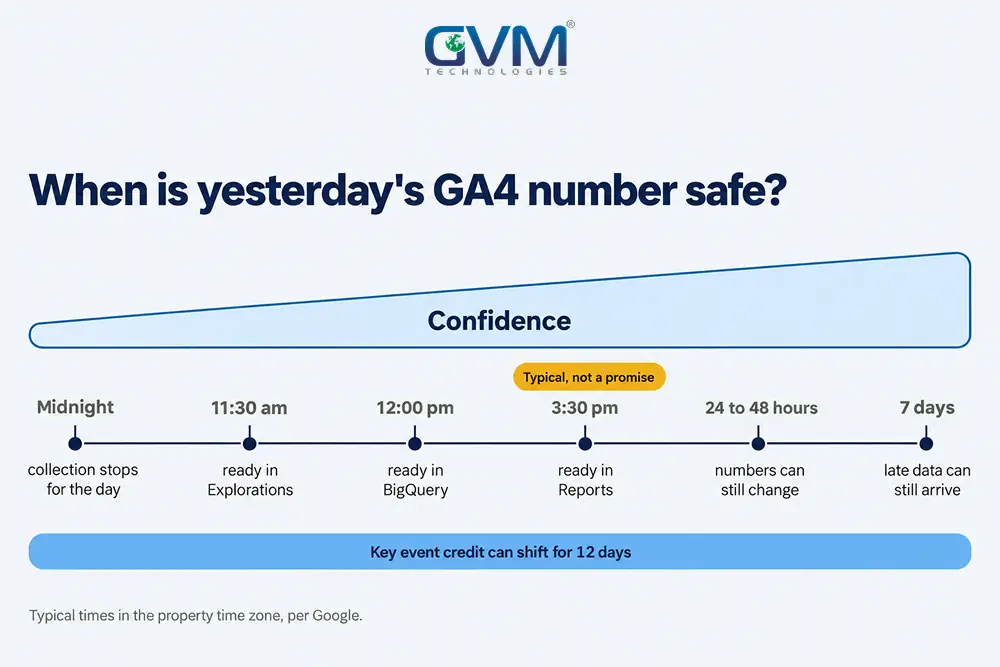
- Processing time: Realtime takes minutes, same-day standard data 2 to 6 hours, and daily data about 12 hours.
- Unmarked key event: an event can arrive yet stay out of conversion columns until you mark the event as a key event, the 2024 name for conversions.
- Late changes: data can arrive up to 7 days late, and key event credit can shift for 12 days.
2. UTMs and redirects behind GA4 not tracking campaigns
A redirect that strips UTM parameters, the campaign tags on links, before the tag reads the URL turns the visit into direct. Case matters too, because GA4 treats Email and email as different values.
- Click your own ad or link and read the final URL.
- Confirm 1 question mark and lowercase values.
On 30 July 2026, Google added a diagnostic that flags campaign data missing Google Ads URL parameters.
GVM’s digital marketing services include analytics and reporting, where credit errors surface first.
3. Payment referrals and paid clicks: GA4 not tracking the right source
- Unwanted referrals: add payment domains under Admin, Data streams, Configure tag settings, List unwanted referrals. The limit is 50.
- How it works: GA4 adds ignore_referrer=true to matching events, so the gateway stops showing as a source.
- The catch: a buyer who first arrived from a domain before you listed that domain can keep the payment domain’s credit on later direct visits.
Paid clicks filed as google / cpc (organic) have no single published cause. Segment the odd rows by browser and landing page: a browser cluster points to privacy limits, a page cluster to a redirect.
Checkpoint 5, show: thresholds and report choices that look like GA4 not tracking
A report can hide data GA4 did record. Thresholds withhold small rows, identity settings change user counts, and the wrong report or date range shows less than exists. Confirm the numbers in Explorations first, before you assume that the tag failed.
Data thresholds and the reporting identity test
Google says data thresholds stop viewers from inferring individuals, and names demographic and search query data as triggers.
Low traffic hits thresholds sooner, as our A/B testing with low traffic guide explains for small samples.
A page visible in Explorations but missing from reports is the classic sign. Switching reporting identity to device-based is a common workaround.
Google says the switch does not affect collection or processing, so test the setting and switch back. The trade-off: a person on a phone and a laptop counts as 2 users.
The wrong report, dimension or date range behind GA4 not tracking
- Realtime versus standard reports: Realtime shows minutes-old data; standard reports follow the processing times.
- First user versus session source: the first shows where a person began, the second where this visit began.
- Explorations versus Reports: Google says they may not be synchronized, so compare like with like.
How to fix GA4 not tracking and keep it from coming back
Fix 1 checkpoint at a time, retest after each change, and keep a dated log of what you touched. Then add alerts so the next break shows up in days. Outages often last because nobody noticed, not because the fix was hard.
1. Fix 1 checkpoint at a time and keep a change log
- Screenshot the broken report and note the first bad date.
- Match the date to GTM container versions, GA4 property change history and release notes.
- Change 1 thing, retest in DebugView, then rerun the ledger test after 48 hours.
- Add a GA4 annotation with the cause and date.
GVM’s DevOps and cloud hosting team sets up CI/CD pipelines, automated build and release steps, which timestamp each deploy so you can match each deploy to a data break.
2. Server-side tagging for GA4 not tracking purchases: when it pays off
Sending purchases from your server avoids blockers and lost redirects. Server-side sending does not remove the need for consent, and it adds hosting and upkeep work.
- Worth the effort when: a redirect gateway drops orders, or paid campaigns optimize on purchases.
- Skip server-side when: your ledger gap sits under about 15% and you run no paid ads.
Protocol events skip event-renaming rules, so your code must apply the renaming itself. Our guide to third-party API integration costs shows what integration upkeep looks like.
3. Alerts that catch GA4 not tracking in days, not weeks
- Custom insights: create 1 in GA4 on sessions or purchases, with an email recipient.
- Google Apps Script and the GA4 Data API: a daily email when active users fall under a floor for 2 days.
- Independent control: if Search Console clicks hold while GA4 sessions fall, suspect the tag.
- Weekly ledger: 5 minutes comparing GA4 purchases with orders.
Our Search Console indexing guide explains how Search Console reports work.
FAQs
1. Why is GA4 not tracking my purchases?
Consent refusals, blockers, payment redirects and unmarked key events each lose orders. Run the ledger test: an even gap suggests consent, while clusters suggest a gateway or browser.
2. How long does GA4 take to show data?
Realtime takes minutes. Google’s data freshness page says processing can take 24 to 48 hours, and prior-day reports typically load by 3:30 pm in your property’s time zone.
3. Why does Realtime work but my reports stay empty?
Realtime proves the tag fires. Empty reports then point to processing time, today in the date range, thresholds, filters or an unmarked key event.
4. Why is my GA4 traffic direct or unassigned?
A redirect that strips UTM parameters, a missing medium or an untagged link is the usual cause.
5. Is server-side tracking the fix for GA4 not tracking purchases?
Only when the ledger shows redirect or blocker loss that tag, consent and filter fixes cannot reach. Repair those first.
Conclusion: trace the data path before you change a setting
Google Analytics not working is rarely a mystery. The 5 checkpoints show where data leaves the path, and the ledger test shows how much.
Your checklist for today:
- Run the ledger test on 7 days of orders
- Open Tag Assistant and DebugView on the live site
- Check consent signals, the internal filter and any hostname filter
- Create 1 custom insight and schedule 1 weekly ledger check
Once the 5 checkpoints pass, a weekly check keeps GA4 not tracking from turning into a month of missing data.
Talk to GVM Technologies about GA4 not tracking correctly
Each week GA4 under-reports, ad budget and SEO decisions follow wrong numbers. GVM Technologies helps in 4 ways:
- Website development: custom builds with payment gateway integration
- Quality assurance testing: manual and automated tests before a release reaches customers
- Search engine optimization: performance tracking and reporting beside technical SEO
- Hire dedicated resources: developers, QA testers and digital marketers on your project
We took a US trucking insurance agency to first-page rankings on numerous high-intent searches within 90 to 120 days, as the trucking insurance case study shows.