Google Tag Manager (GTM) is a free tool that loads tracking tags without editing your site’s code. When its setup goes wrong, GTM shows no error. Reports just fill with bad numbers.
The most common Google Tag Manager mistakes double events, blank fields or hide traffic sources. If reports already look off, start with fixes for GA4 numbers that look wrong, then return here.
Quick answer: Google Tag Manager mistakes break analytics quietly because a tag can fire while the data goes missing, arrives twice or arrives half empty. Test each change in a clean visitor session, compare accepted and rejected consent, and publish in small batches.
Key takeaways
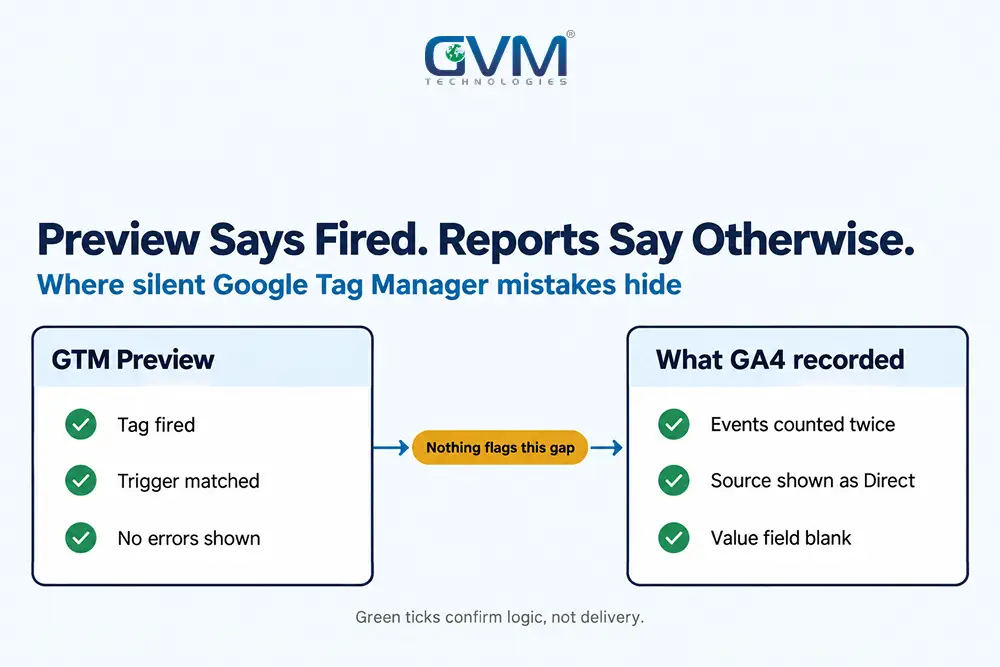
- Google Tag Manager mistakes leave no error message: a tag can show “fired” while Google Analytics 4 (GA4) does not record the hit.
- Every silent failure produces 1 of 5 signatures: missing, doubled, half empty, mis-credited or decayed data.
- GTM Preview mode runs in your own browser, so consent, ad blockers and redirects can change what real visitors send.
- A paired accept and reject test exposes faults that a single Preview pass hides.
- Small publishes, named versions and 1 owner keep each break traceable to 1 change.
What Google Tag Manager mistakes look like when nothing shows an error
Silent Google Tag Manager mistakes are setup flaws that change your data without raising a warning. GTM still reports success, so the flaw only appears as odd numbers: a conversion count that doubled, a source that vanished or a field that stays blank.
Why the green tick in GTM Preview proves less than it seems
GTM Preview mode runs your unpublished draft inside your own browser session. Google’s Preview documentation says it shows whether a tag fired and which trigger, the rule that starts a tag, caused it.
Nothing there confirms that a request reached GA4, Google’s current analytics product. Real visitors also differ from you in 3 ways:
- Consent: your session may accept cookies while many visitors reject them.
- Extensions: your browser may run without the ad blockers visitors use.
- Site code: a Content Security Policy (CSP), a rule listing allowed scripts, can block requests, as security headers before launch shows.
Owners often miss these faults because a busy dashboard feels healthy, yet partial data hides better than no data.
The 5 silent signatures: how each mistake shows up in reports
At GVM Technologies, we sort silent failures by what the reports show. The 5 signatures below are our own working scheme, not a Google standard.
| Signature | What reports show | Usual container cause |
|---|---|---|
| Missing | A key event or conversion drops to 0 | Unpublished container, wrong destination |
| Doubled | Conversions and page views run roughly 2x | Hardcoded snippet plus a GTM tag |
| Half empty | Events arrive with blank fields | Tag fires before its value is ready |
| Mis-credited | Direct and Unassigned traffic grow | Late consent defaults, session resets |
| Decayed | Accuracy slips months after launch | Text-based triggers broken by redesigns |
Google Tag Manager mistakes that double your numbers
Tags firing twice are the most visible of the Google Tag Manager mistakes: 2 tags send the same event. The usual pair is a hardcoded gtag.js snippet, Google’s own tracking code, plus a GTM tag. Count outgoing requests per page view to confirm.
1. Google Tag Manager mistakes from a hardcoded snippet plus a GTM tag
A developer pastes gtag.js into the theme, and later a marketer adds a GA4 tag in GTM. Both send page views, so every visit counts twice.
Some WordPress analytics plugins inject GA4 code too, and plugin updates that quietly change tracking are a common source. To confirm, run these 3 checks:
- Open browser developer tools (press F12), choose Network and filter for “collect”.
- Load 1 page and count requests carrying the same Measurement ID, the label that routes events to a GA4 stream.
- Remove the sender you do not own, then recount.
2. Leftover tags and extra containers after a move
Platform moves create most duplicates: a redesign adds a new GA4 tag while the old tag stays live. A hosting or platform migration is the usual trigger.
- Find every container: view the page source and search for “GTM-“.
- Compare Google tags: open each container and list its Measurement IDs.
3. Overlapping triggers and automatic events
GA4 enhanced measurement, Google’s automatic event collection, turns on scroll, file_download, form_start and form_submit by default, per Google’s enhanced measurement page.
A custom GTM tag with the same event name then adds a second copy of each event.
- Give each event 1 owner: switch off the automatic version or skip the custom one.
Google Tag Manager mistakes in timing that leave events half empty
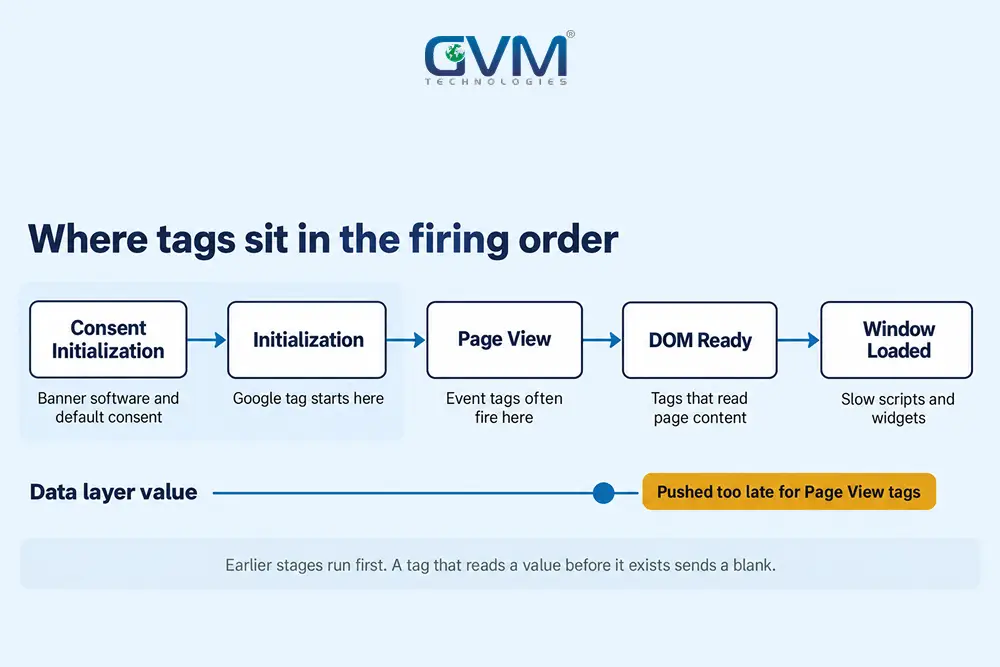
Among Google Tag Manager mistakes, half-empty events hide best: a tag fires before the value it needs exists. The event still arrives, so dashboards look busy while the segment stays blank. Order matters: consent, then the Google tag, then event tags.
Event tags that start before the Google tag
Google’s trigger documentation lists the firing order: Consent Initialization, Initialization, Page View, DOM Ready, then Window Loaded.
A Google tag on Page View shares a stage with event tags, so their order can slip. Move the Google tag to an Initialization trigger so it starts first.
Trim extra tags too, since third-party scripts that slow mobile pages add up.
Data layer values and click triggers that miss the moment
The data layer is a JavaScript list where a site hands values, such as an order total, to GTM. A tag reads a blank when the site pushes the value late.
- Redirects: the confirmation page loads without the email typed into the form.
- No-reload forms: the page changes before the value reaches the tag.
- Embedded forms: third-party forms sit inside iframes, boxes GTM cannot read across.
- Button-text clicks: a trigger on “Get a quote” breaks when a redesign says “Request a quote”.
- Event names: GA4 treats Purchase and purchase as 2 events, because Google’s event naming rules make names case sensitive.
Ask the developer to push 1 event when the action succeeds, then trigger on that event. Redesigns hit text-based triggers hardest, as our notes on design changes that break tracking explain.
For values changed by a setup tag, Google’s tag sequencing page says to use dataLayer.set(), because push() lands 1 event late.
Google Tag Manager mistakes with consent that blank or blur your data
Consent mistakes remove or delay the signals Google needs, and redirect mistakes reset where a visit came from. Both usually surface as odd Direct or Unassigned traffic, not as a clear outage. A paired accept and reject test finds them quickly.
1. Google Tag Manager mistakes that block tags instead of setting consent
Google’s consent mode guide describes 2 modes. Basic mode blocks Google tags until the visitor answers, while advanced mode loads them with defaults and sends cookieless pings.
A common mistake is gating Google tags with custom consent triggers. Practitioner reports suggest the gcs and gcd parameters, which carry consent values, then stop reaching Google.
Let Google tags fire normally with defaults set, and check the choice against what a cookie banner must do in your markets.
2. Default consent set late or left on “Not set”
The Consent Initialization trigger fires before every other trigger, per Google’s consent overview.
Put the consent management platform (CMP, the banner software) tag and default states there, so the first hit leaves with the right state.
GTM’s Consent Overview also lists tags under “Consent Not Configured”. Open each one, choose a setting and publish.
3. Redirects and page reloads that restart the session
Some CMP setups reload the page after Accept, and payment pages on another domain do the same. Each reset can turn 1 visit into 2 sessions, and the second starts without campaign parameters (UTM tags).
Check cross-domain settings, which join visits across your sites, in the GA4 data stream. Then see what payment gateway redirects return to your site.
Warning: A widely shared claim says late consent costs the first page view its session data. Results differ by banner and page, so test your own first hit.
The accept and reject twin test for Google Tag Manager mistakes
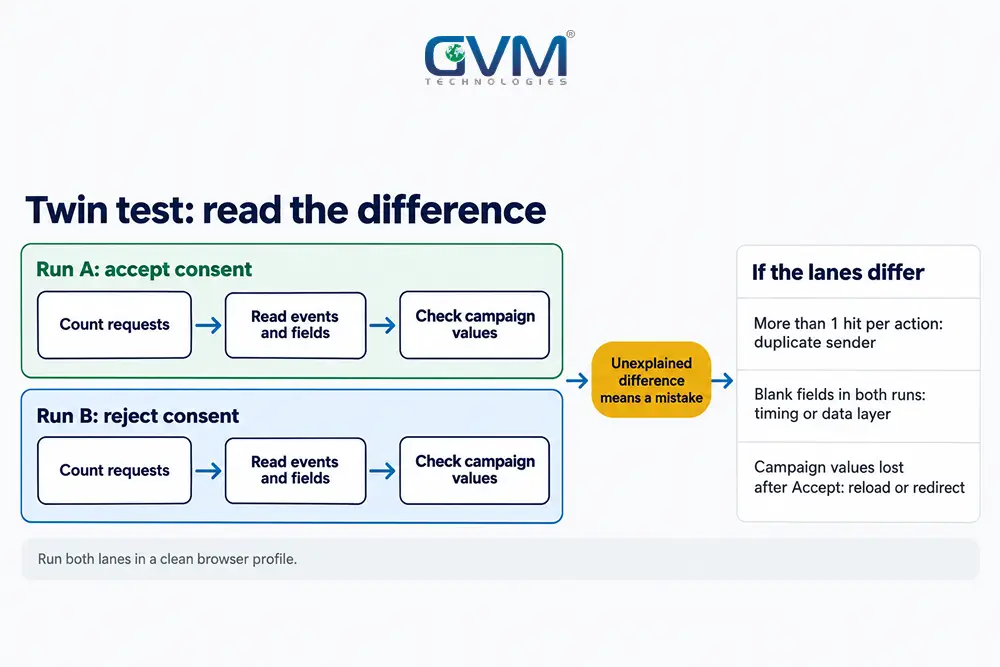
Unlike GTM Preview mode, the twin test runs 1 journey twice in a clean browser profile, once accepting consent and once rejecting it. Compare the outgoing analytics requests from both runs. A difference you cannot explain points to a consent, timing or trigger mistake.
- Start a clean browser profile without extensions, open the Network tab, then filter for “collect”.
- Load a landing page URL that carries campaign tags, then accept consent.
- Complete 1 key action, such as a form, and record each request’s event name and fields.
- Clear cookies, reload the same URL, reject consent and repeat steps 2 and 3.
- Compare both logs: request count, event names, fields and campaign values.
DebugView, GA4’s live event viewer, hides events from visitors who have not consented to analytics cookies, per Google’s DebugView page.
Google Tag Manager mistakes in publishing and ownership
Publishing mistakes ship untested work or leave good work unpublished, and who owns the container and code decides how long Google Tag Manager mistakes survive. A container with no owner, no version notes and 1 giant publish turns every later break into slow guesswork.
1. Changes saved in a workspace but left unpublished
Preview tests the draft, while live visitors see only the published version. Open the Versions tab and confirm the live version’s number and date match your last change.
2. Bulk-built containers published in 1 batch
Imports, agency templates and AI tools for web development can create dozens of tags in 1 sitting.
A 28-tag build with 1 trigger each produces 56 changes in the workspace, GTM’s draft area, and few people read all 56.
Google’s import page explains that Overwrite replaces every tag, trigger and variable in the target workspace, while Merge lets you rename or overwrite conflicts.
- Publish in batches: push 5 to 10 tags, then test before the next group.
- Sample each batch: test 2 to 3 representative tags, including 1 with consent checks.
- Review AI-built tags: GVM advises treating them as drafts from a new hire, so check each trigger’s scope.
3. Permissions, paused tags and unclear names
Google’s permission levels split Edit, Approve and Publish. Give freelancers Edit, name 1 owner for Publish and create the GTM account under a company email.
Whoever builds, the business should hold the logins, as the agency versus freelancer cost comparison notes.
- Paused tags: a later editor may revive one without knowing why, so delete it or label the reason.
- Names: use a pattern such as “GA4 – lead_submit – form success” so platform, event and trigger show at a glance.
- Version notes: record what changed, why and who asked.
A 30-minute audit that catches Google Tag Manager mistakes early
A container audit lists every tag, trigger and consent setting, then tests the 5 journeys that matter most. Run 1 each quarter and following a redesign, a platform move or a plugin update. Add an alert for any key event that drops to 0 for 1 day.
The 30-minute audit, step by step
- List every tag with its type, status and trigger from the Tags view.
- Group tags by Measurement ID, flag any ID with 2 Google tags, and flag paused tags.
- Check conversion tags, and narrow any that sit on an All Pages trigger.
- Open Consent Overview and clear the “Consent Not Configured” group.
- Review who holds Publish and remove stale users.
- Run the twin test on the journeys that earn revenue or leads.
Add alerts too: a GA4 custom insight flags a sharp fall in a key event. A weekly comparison of orders or CRM (customer database) leads with GA4 counts catches slow drift.
A site-wide technical SEO audit covers causes on the website itself that a container audit cannot see.
Fix it yourself or hand it to a developer
| Problem | Container-only fix | Needs a developer |
|---|---|---|
| Duplicate Google tags | Yes | Sometimes, for hardcoded snippets |
| Consent defaults | Partly | Yes, for CMP settings and code |
| Empty data layer values | No | Yes |
| CSP blocking requests | No | Yes |
| Redirect or cross-domain gaps | Partly | Yes |
Container edits can land the same day, while code changes follow the release cycle. GVM builds custom websites and payment gateway integrations, so a data layer request can join the same build ticket.
FAQs
1. Why does GTM say a tag fired when GA4 shows no data?
Preview confirms the trigger and tag ran in your browser. The request can still be blocked, sent to the wrong property, held back by consent or filtered. Check the Network tab, then the Measurement ID.
2. Can Google Tag Manager mistakes make traffic look like it fell overnight?
Yes, in reports. A bad publish or late consent defaults can cut recorded sessions while real visits hold steady. Compare with orders, then work through diagnosing a sudden traffic drop.
3. Is it safe to create a new container when the old one has no known owner?
Usually, yes, because conversion history lives in the ad and analytics accounts, not in GTM. Running both containers together double counts, so swap the snippets the same day.
4. Does fixing Google Tag Manager mistakes take a developer?
Container-only problems, such as unpublished changes and duplicate tags, are fixable by a marketer. Empty data layer values, CSP blocks and redirect gaps need code changes.
5. Will server-side tagging fix these mistakes?
No. Server-side tagging moves processing to your own server, but a value the browser did not capture stays missing.
Conclusion: trust the request, not the green tick
Google Tag Manager mistakes break analytics through 5 quiet signatures, and the browser request tells the truth where the Preview tick does not.
Fixing Google Tag Manager mistakes means testing like a visitor, publishing small and naming 1 owner.
Start today:
- Count analytics requests per page view on your top 3 pages.
- Run the accept and reject twin test on 1 revenue journey.
- Clear every tag under “Consent Not Configured”.
- Name 1 owner for Publish and note each version.
As imports and AI assistants build more containers, human review matters more.
Talk to GVM Technologies about tracking you can trust
While a tracking fault goes unnoticed, ad budgets and SEO choices follow bad data. GVM Technologies can take the work from audit to repair:
- Technical SEO and reporting: technical audits and performance reporting for key pages.
- Analytics and reporting: campaign reporting that ties spend to results.
- Quality assurance across devices: checks across browsers and operating systems before release.
- Custom website development: custom builds and gateway or API integrations that give tags clean data.
On the TREM Group real estate project, the audit found incomplete conversion tracking and attribution. Several target keywords then rose 20 to 35 positions within 3 months.