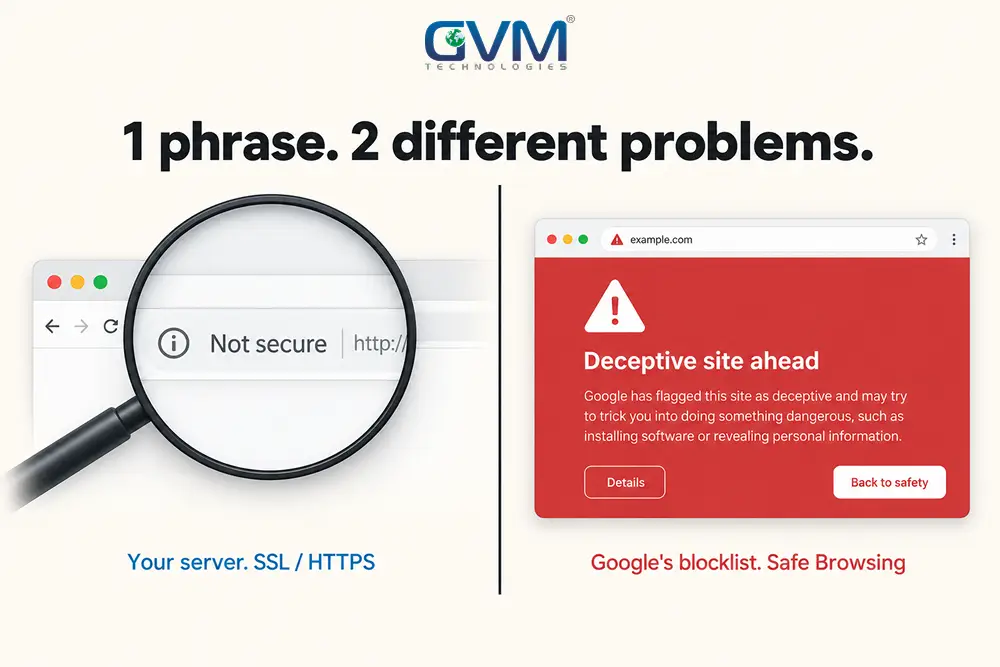
If you are asking why is my site not secure, or why a red “Deceptive site ahead” screen appeared, you are looking at one of 2 unrelated problems.
Grey “Not secure” text is a missing or broken HTTPS setup. A red full-page warning is Google Safe Browsing flagging phishing, malware, or scam-like content.
Each has a different fix, and guessing costs days. This guide identifies your exact warning and clears it, starting from a pre-launch security checklist that prevents both.
Quick answer: “Not secure” is an SSL and HTTPS issue on your side, not a Google penalty. “Deceptive” or “Dangerous” is a Google Safe Browsing flag, usually from a hack that now serves phishing or malware. Open Search Console, then Security Issues first. Fix the cause, then request 1 review. Appealing without cleaning is why the flag returns.
Key Takeaways
- The grey “Not secure” label and the red full-page warning are different systems. The fixes do not overlap.
- Google Safe Browsing feeds the red warning in Chrome, Safari, Firefox, and Edge. Clearing it with Google removes all of them.
- Most “deceptive” flags come from a hack, not bad design. The injected page is usually hidden from you and shown only to search or mobile visitors.
- A passed review removes the warning, not the vulnerability. An unpatched entry point brings the flag back within a week.
- New, low-traffic, login-only, and template-built sites get false positives more often.
The 4 Browser Warnings People Call “Not Secure”
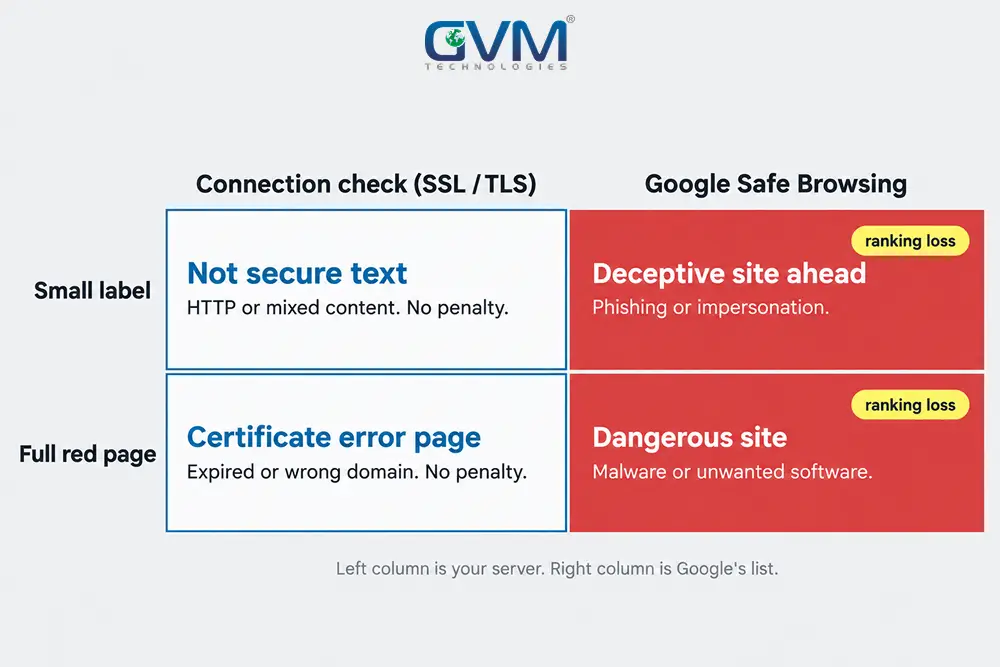
There are 4 warnings across 2 systems. The first 2 concern the encrypted connection. The other 2 are Google Safe Browsing flags that block the whole page in red.
| Warning | Look | System | Root cause | Penalty |
|---|---|---|---|---|
| “Not secure” grey text | Small label, no red | Browser HTTPS check | HTTP page, or mixed content | No |
| “Your connection is not private” | Full page, cert error | Browser certificate check | Certificate expired, self-signed, wrong domain | No |
| “Deceptive site ahead” | Full page, red | Google Safe Browsing | Phishing, impersonation, injected scam page | Yes, plus ranking loss |
| “The site ahead contains malware” | Full page, red | Google Safe Browsing | Malware, unwanted software, drive-by download | Yes, plus ranking loss |
1. “Not secure” text in the address bar
Chrome has labeled every HTTP page “Not secure” since version 68, in July 2018. It means the connection is not encrypted.
It is not a hack signal and not a manual action. Visitors still load the site, and Google still indexes it, though HTTPS has been a ranking signal since 2014.
2. “Your connection is not private” certificate error
This full-page block, often NET::ERR_CERT_DATE_INVALID or NET::ERR_CERT_COMMON_NAME_INVALID, means a certificate exists but the browser rejects it.
Usual reasons: it expired, it is self-signed, it covers the bare domain but not www, or the server sends an incomplete certificate chain.
3. “Deceptive site ahead” red warning
This is Safe Browsing’s social engineering flag. It fires on pages that try to extract passwords or payment details, impersonate a brand, or host a phishing kit after a hack.
Every major browser reads the same list, so the warning also appears in Safari, Firefox, and Edge.
4. “Dangerous site” or malware warning
Same system, malware category: injected scripts, unwanted software, or silent downloads.
On a normal business site, this is almost always a compromise, not something you published.
Read the Real Reason in Search Console
Google Search Console’s Security Issues report is the only place that names your exact flag and why it fired. Browser scanners guess.
Search Console shows Google’s verdict, the threat category, and sample URLs.
1. How to read the Security Issues report
Open the Security Issues report. It shows a single category and example URLs. Treat those URLs as a sample, not the full list.
What it does and does not do:
- Confirms the threat type and gives you real URLs to inspect.
- Provides the “Request Review” button when you believe the site is clean.
- Does not name the vulnerability. You still have to find that.
- Lags Google’s crawl, so a fixed site can show “issues detected” for a day or 2.
2. The email from the “Google Search Console Team”
An email titled “Social engineering content detected” is genuine when it links only to your verified property. The 3 URLs it lists are samples, often the homepage, /index, and a variant.
A frequent mistake: treating that short list as the whole problem and missing a phishing folder buried deeper. If the threat type is one you cannot place, stop guessing.
GVM’s project rescue team is usually called in after a second failed review, when a week is already lost.
Fix the “Not Secure” Label: An SSL and HTTPS Problem
Serve every page and asset over HTTPS with a valid certificate. Install or renew the certificate, force HTTPS site-wide, then remove mixed content: any image, script, or font still loading over http://.
A single insecure asset keeps the page flagged.
Why a valid certificate still shows “not secure”
You installed a certificate, saw the padlock, then watched “not secure” return. The cause is one of these:
- Mixed content. The page is HTTPS but pulls 1 resource over HTTP. The browser console lists each one.
- No HTTPS redirect. The
http://version still resolves. - Coverage gap. The certificate skips
www, or a wildcard misses a sub-subdomain. - Wrong URL tested. You are viewing
http://out of habit. - CDN mismatch. Edge and origin certificates disagree, common on a misconfigured Cloudflare “Full (strict)” setup.
The HTTPS fix path, in order
- Install a certificate from a trusted authority. Let’s Encrypt is free and auto-renews.
- Confirm it covers every hostname, including
wwwand subdomains. - Add a server-level 301 redirect from HTTP to HTTPS.
- Update internal links, canonical tags, and the sitemap to
https://. - Fix each mixed-content URL from the console.
- Add an HSTS header so browsers refuse the insecure version.
- Re-test with an external SSL checker, not your cached browser.
A new build should never reach this list. GVM configures HTTPS, redirects, and security headers on every website before launch.
Why Google Flags “Deceptive” or “Dangerous”: 4 Causes
A Safe Browsing flag has 4 triggers. The first is by far the most common on real business sites.
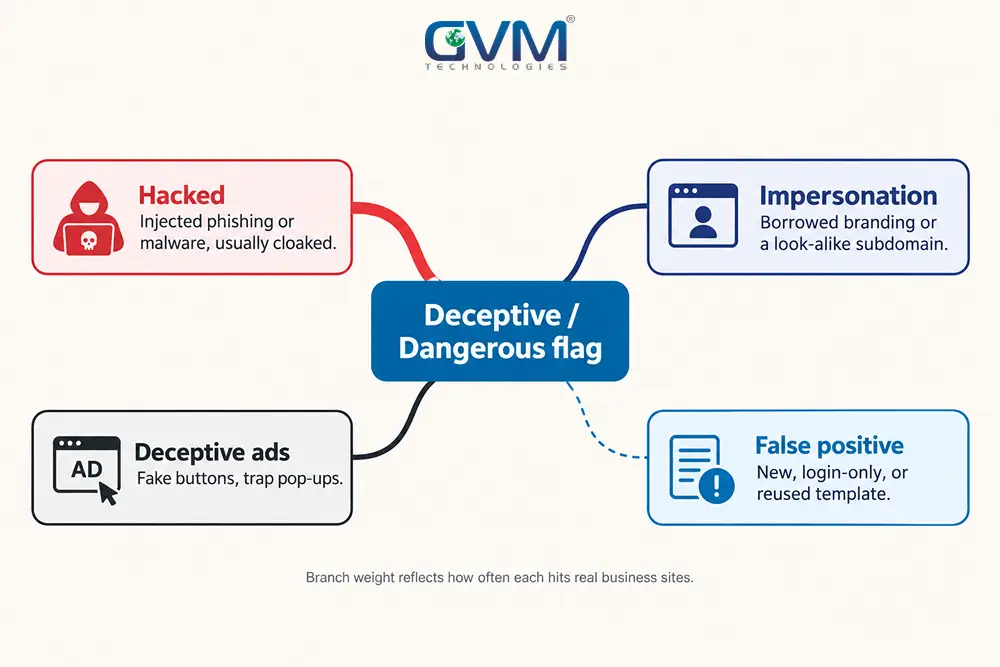
1. The site was hacked and now serves phishing or malware
An attacker exploits an outdated plugin, a weak password, or a vulnerable framework, then adds a phishing page or a redirect.
The content is usually cloaked: hidden from the logged-in owner, shown only to visitors from Google or on mobile. That is why the site “looks fine” to you.
Full recovery is its own process, covered in what to do if your website gets hacked.
2. Your content or subdomain looks like impersonation
This catches legitimate sites. Triggers:
- A login page carrying another company’s logo and layout.
- A page collecting passwords or card numbers with no clear branding.
- A subdomain like
paypal.yourdomain.comorvault.yourdomain.com.
Self-hosters hit this constantly. Certificate Transparency logs let Google discover those subdomains even when nothing links to them.
3. Deceptive ads, fake buttons, and forced pop-ups
If your site runs third-party ad slots, 1 malicious creative can flag the whole domain.
Fake “Download” buttons, ads styled as system alerts, and pop-ups that trap the back button all count as social engineering under Google’s deceptive content policy.
4. A false positive from Google’s automated system
More likely on sites that are new, low-traffic, behind a login, or built from a reused template. Chrome also runs a local check that can report suspicious pages.
A login screen with heavy third-party branding and no public content is a classic false-positive pattern. There is a separate channel for contesting it, below.
Remove the “Deceptive Site Ahead” Warning
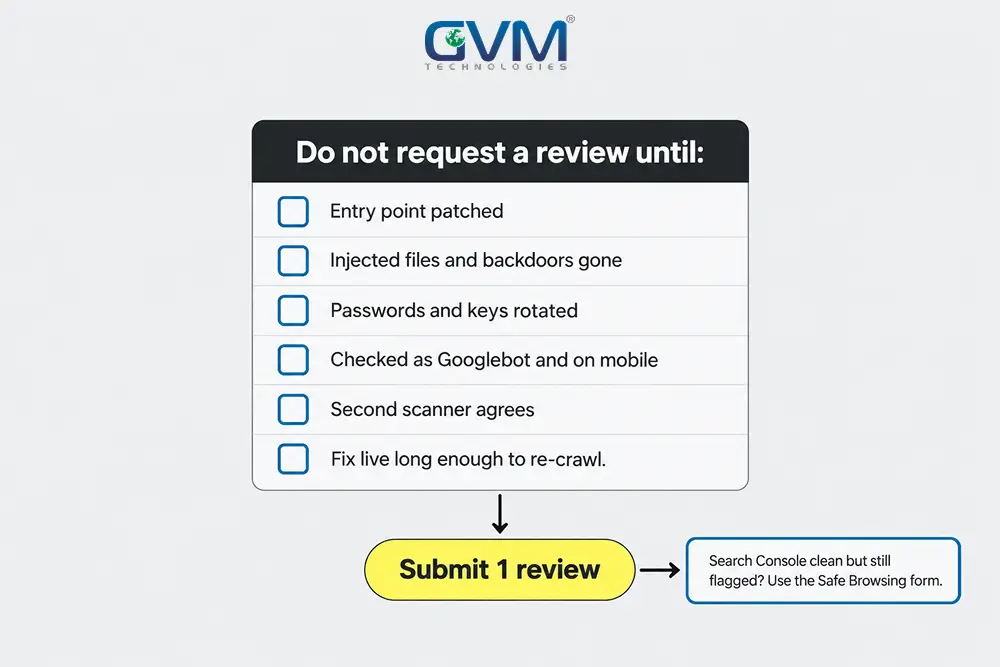
Clean the site fully, verify it as a search engine and on mobile, then submit 1 review. If you are certain it is a false positive, use the Safe Browsing form instead.
1. Clean first, then request 1 review
Do not click “Request Review” until every line is true. A failed review moves you to a slower queue.
- Entry point found and patched, not just the visible symptom.
- Every injected file, redirect, hidden admin, and cron task removed.
- All passwords and API keys rotated from a clean device.
- Site checked as Googlebot and on mobile, not only logged in.
- A second scanner agrees it is clean.
- The fix has been live long enough to re-crawl.
2. How long the review takes
| Flag type | Typical clearance after a clean review |
|---|---|
| Malware / harmful downloads | Hours to 1 day |
| Social engineering / deceptive | 3 to 7 days |
| Submitted before the site is clean | Fails, then a longer queue |
Your domain’s Safe Browsing status is public, so you can watch it change.
3. The false-positive path: the Safe Browsing form
If Search Console shows no issue but the red screen persists, submit the incorrect phishing warning form.
State what the site is, why the flagged page looks the way it does, and what you changed. This is separate from the Search Console review and is the right route for self-hosted tools and internal dashboards.
Why the Flag Keeps Coming Back After You Appeal
The appeal clears the flag, not the hole. If a vulnerability, a second backdoor, or an un-rotated key survives, the attacker re-adds the page and Google re-flags the domain, often within a week.
1. The appeal clears the symptom, not the cause
A review checks whether the bad content is gone right now. It does not audit your plugins, your passwords, the build gaps attackers exploit, or the neighbouring sites on your hosting account.
Owners who appeal 3 or 4 times a month are removing the page and leaving the door open.
2. Scanners that report “clean” when the site is not
Remote scanners match known signatures. They miss:
- A custom backdoor written for your site.
- A cloaked redirect that only fires for Googlebot.
- Malware sitting inside a database row, not a file.
Compare your files against a known-good copy and check core files against official checksums. GVM’s security testing pairs automated scans with manual code review for this exact blind spot.
3. Myths that waste days
- Blocking Googlebot IP ranges so Safe Browsing cannot crawl the page. It does not delist you and can drop real pages from the index.
- Renaming pages or subdomains without knowing why the flag fired.
- Restoring an old backup that was infected weeks before you noticed.
- Rebuilding the frontend while the compromised backend and credentials stay in place.
What Recovery Costs and How Long It Takes
An SSL fix is cheap and quick. A Safe Browsing flag from a real hack runs from a few hundred dollars for a small site to several thousand for an e-commerce or database site.
| Scenario | Typical cost | Timeline |
|---|---|---|
| “Not secure”: certificate plus mixed content | Free to 100 dollars | A few hours |
| Certificate error on a live site | Free to 150 dollars | Under a day |
| Deceptive flag, small site, entry point found fast | Time, or 200 to 800 dollars | 1 to 4 days |
| Deceptive or malware flag, CMS or e-commerce | 1,500 to 8,000 dollars and up | 1 to 3 weeks |
| Repeat flag after failed self-cleanups | Higher, plus lost queue time | 2 to 6 weeks |
The driver is how long the malicious content stays live and how well it is cloaked. A site checked as Googlebot on day 1 recovers far faster than one appealed blindly for a month. GVM builds monitoring into managed cloud hosting and dedicated support retainers so the flag does not return.
FAQs
1. Is “Not secure” the same as being blocklisted by Google?
No. “Not secure” is a browser note about missing HTTPS, with no penalty and no blocklist entry. Blocklisting is a Safe Browsing flag for phishing or malware, which shows a red screen and hurts rankings.
2. Can a website be flagged as deceptive without being hacked?
Yes. Impersonation-style content, a login page with another brand’s design, deceptive ads, or a look-alike subdomain can all trigger it. Automated false positives also happen on new or login-only sites.
3. Why is my site not secure even though my SSL certificate is valid?
Almost always mixed content: 1 image, script, or font still loads over HTTP. Other causes are a missing HTTP-to-HTTPS redirect, a certificate that skips www, or a CDN and origin mismatch.
4. How long does it take to remove the “Deceptive site ahead” warning?
After a review with the site genuinely clean, malware flags often clear within a day and deceptive flags in 3 to 7 days. Submitting early resets you to a slower queue.
5. Do other browsers use Google’s list?
Yes. Safari, Firefox, and Edge all read Google Safe Browsing data. Clearing the flag with Google removes the warning everywhere.
6. My site is behind a login and not public. Why was it flagged?
Chrome runs a local check on pages users visit and can report them. A login-only page with heavy third-party branding matches the phishing pattern. Use the Safe Browsing form to contest it.
Conclusion
You have 2 warnings, 2 systems, and 2 paths. Confirm which one you are facing first:
- Grey “Not secure”: an HTTPS job. Certificate, redirect, mixed content. No penalty.
- Red full-page warning: open Search Console, find the flag type, find the entry point, remove every trace, request 1 review.
- Search Console clean but still flagged: treat it as a false positive and use the Safe Browsing form.
Sites that stay flagged appeal without investigating. Sites that recover for good find the exact gap a stranger used, or the exact asset loading over HTTP, and close it once.
Clear a Flagged Site With GVM Technologies
Every hour a warning stays up costs traffic, trust, and sometimes email delivery. If the cause is not obvious, the flag came back after a review, or customer data may have been exposed, hand it to a team that does this weekly.
GVM Technologies has built and secured software since 2013 under ISO-certified processes. A flagged-site engagement covers:
- The full diagnosis: which warning, which threat category, and the real entry point.
- Removal of injected pages, redirects, and backdoors, verified as Googlebot and on mobile.
- SSL, redirects, and security headers set correctly across every hostname.
- The Search Console review or Safe Browsing appeal, handled and tracked.
- A technical SEO audit to confirm nothing was left behind, and SEO recovery to rebuild rankings.
Talk to GVM Technologies about a flagged website and get a scoped assessment: what triggered the warning, how to clear it, and how to stop it returning.